Delivery Route Optimization App with Accurate ETAs
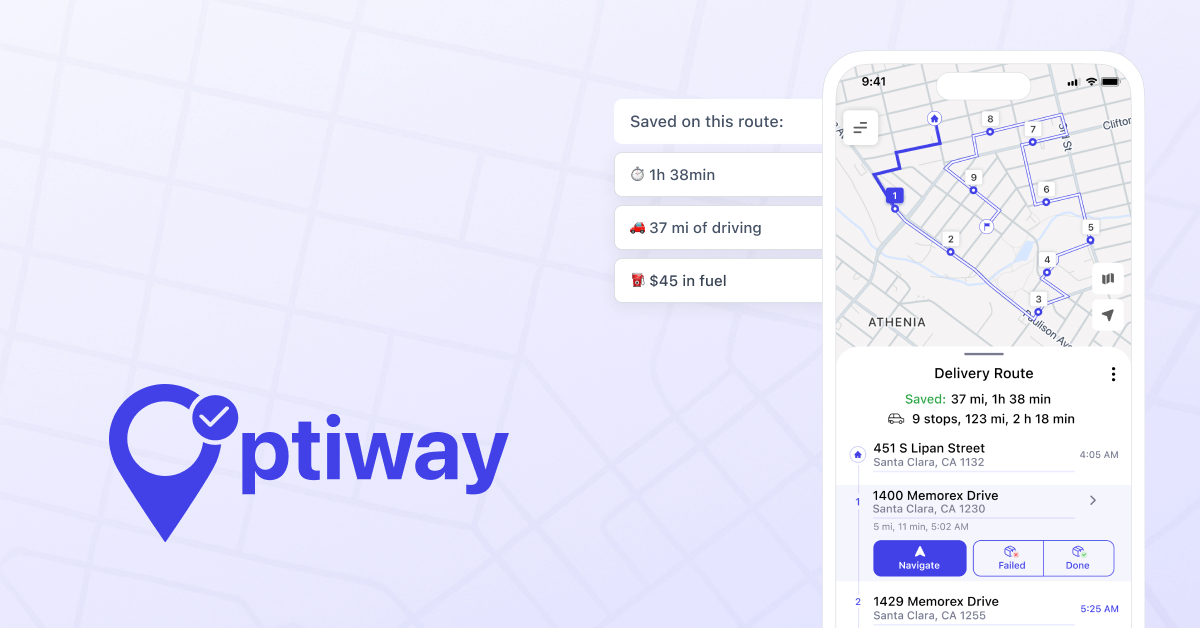
Plan smarter runs with accurate ETAs for every stop and less windshield time. Optiway optimizes delivery routes so you finish earlier.

Product
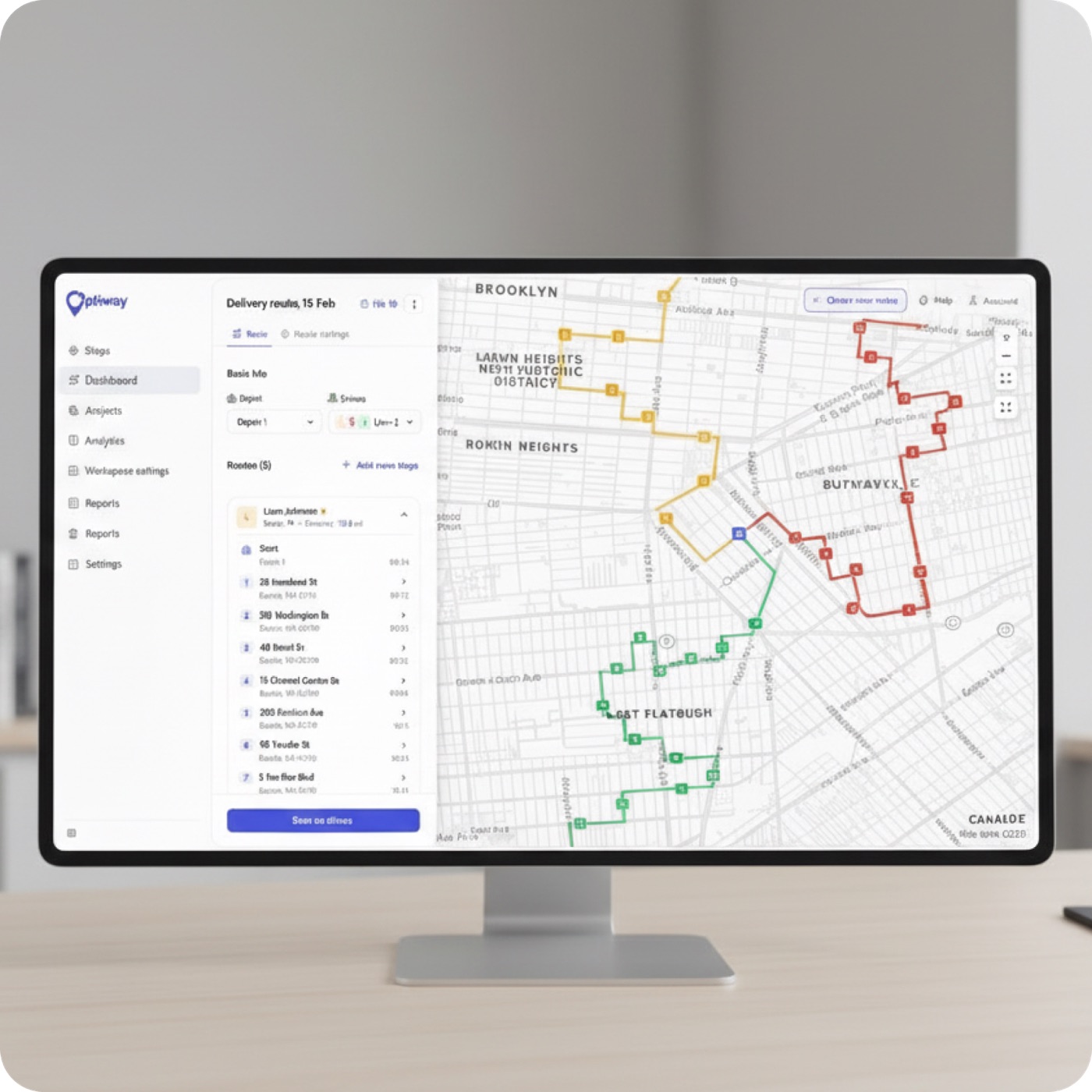
You already have the stops. What you don’t have is the right order to drive them in — and that order is where a delivery day is won or lost. The same list can make a short day or a long one, depending almost entirely on the sequence.
One-click route optimization is Optiway’s answer: take your existing stop list and reorder it into the fastest workable route, in a single click. No new addresses, no extra data entry — just the same stops, resequenced so the van stops doubling back. Done well, last mile route optimization quietly hands back fuel, hours, and the extra drop you couldn’t fit before.
Here’s exactly what that one click does, from the first stop to a full fleet.
The whole flow is five steps:
Start with a stop list, press optimize, and Optiway recalculates the full run into an optimized stop sequence — up to 200 stops in a single pass. As a route sequencer software, it treats the day as one connected route instead of forty separate map lookups.
The reordering isn’t cosmetic. Stops driven in the order they were entered almost never match the order a van should actually take, and that mismatch is exactly where the wasted miles hide. Trim two minutes of backtracking from each of 60 drops and you’ve handed the driver back two hours — often the line between fitting one more route in and turning the work away.
If you’ve only ever sequenced stops by hand, the first optimized run is a small shock. Most of the routing busywork just disappears.
The clearest way to see it is the same stop list, before and after a single click:
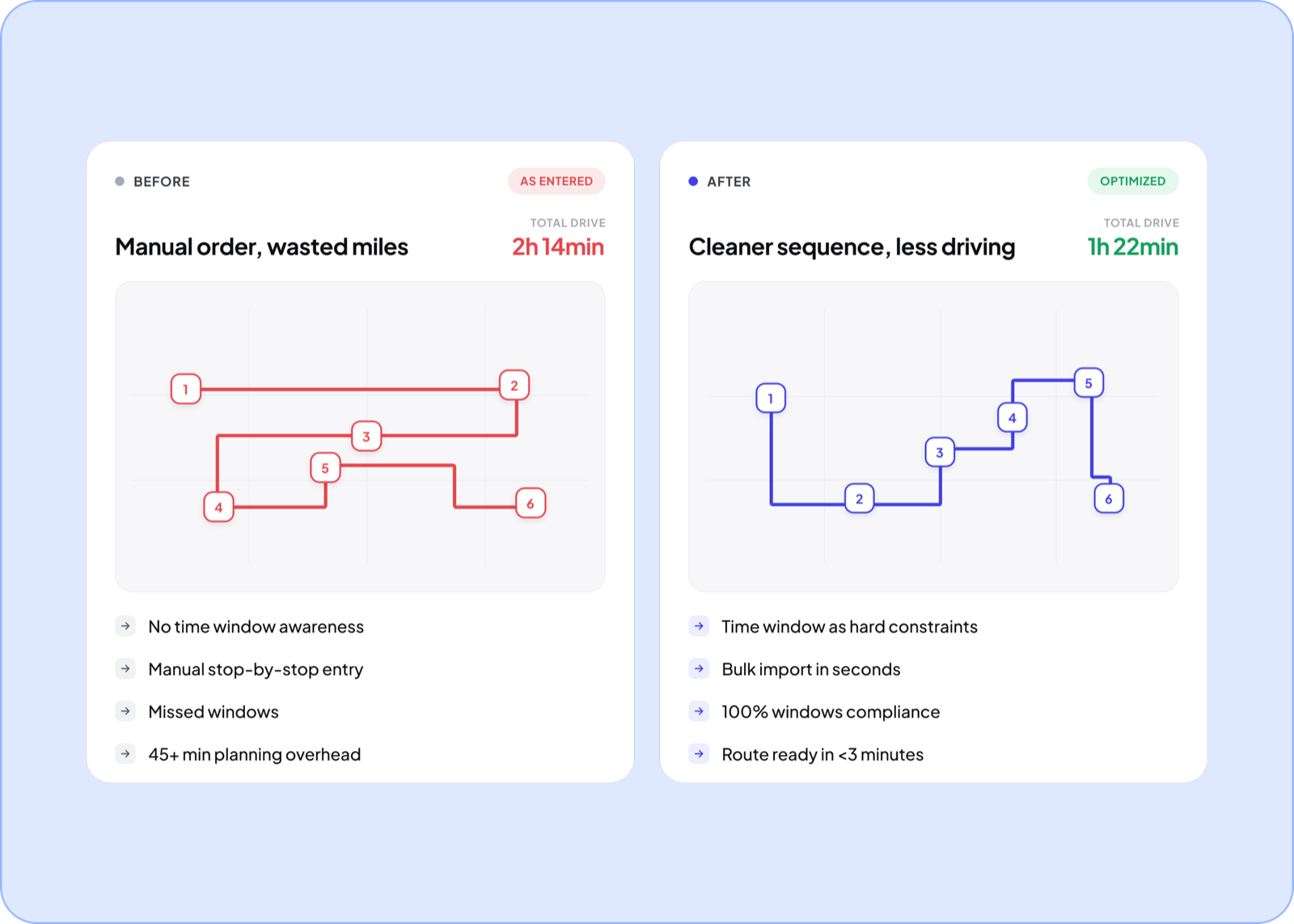
None of this is a black box. The engine balances what you can see and control: the distance between stops, the time each leg takes on real roads, your time windows, and the stop priorities you set. Nudge any of them and the sequence visibly shifts, which is what makes the output something a dispatcher trusts instead of second-guesses. For the logic on why the best route isn’t always the shortest one on the map, the reasoning is simpler than it looks — and you can trace the full loop in how Optiway works.
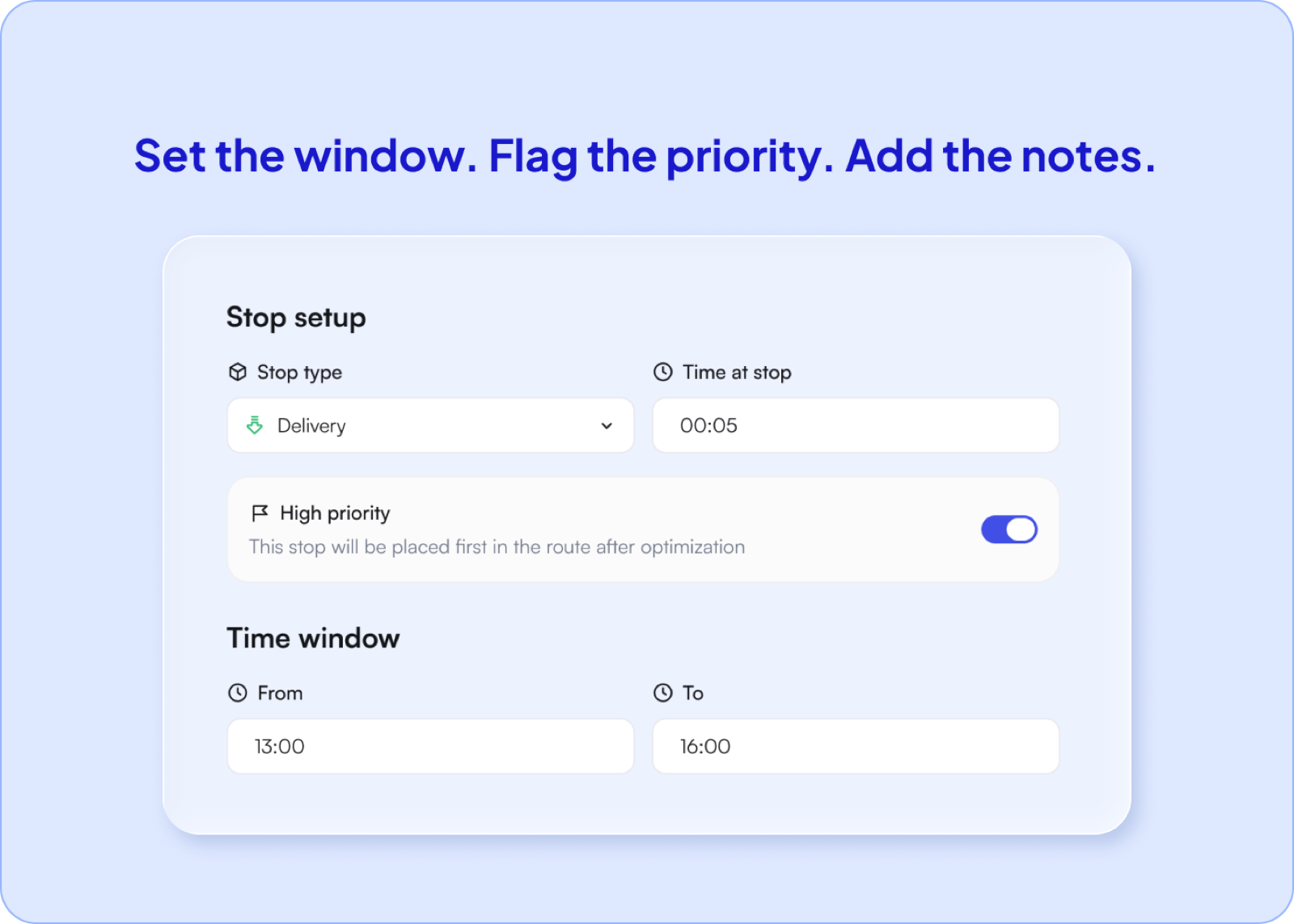
No route survives contact with a real day. A customer pushes their slot, a rush order lands at ten, a bridge closes. Dynamic route planning is the difference between a plan that bends and one that snaps.
It’s the same one-click engine, only aimed at a moving target. That kind of dynamic route planning keeps every recalculated version in sync through the route planning tool, so nobody drives yesterday’s plan by accident.
Picture the driver three stops in when a rush order lands across town. Instead of eyeballing where it fits, you drop it in and the remaining stops re-thread around it — the driver just follows the new order, no reshuffle scribbled on a napkin at a red light.
The engine doesn’t change when you add drivers; your coordination does. Today Optiway optimizes each driver’s route and splits an oversized list into balanced runs — usable fleet route optimization from day one.
Add drivers and the platform keeps up: central dispatch and automatic assignment hand each route to the right driver, so you optimize and run the whole operation from one screen.
Scaling up shouldn’t mean tearing your tools out and starting over. The same fleet route optimization workspace grows with the fleet, inside a broader delivery management software platform rather than a throwaway app you outgrow in a quarter.
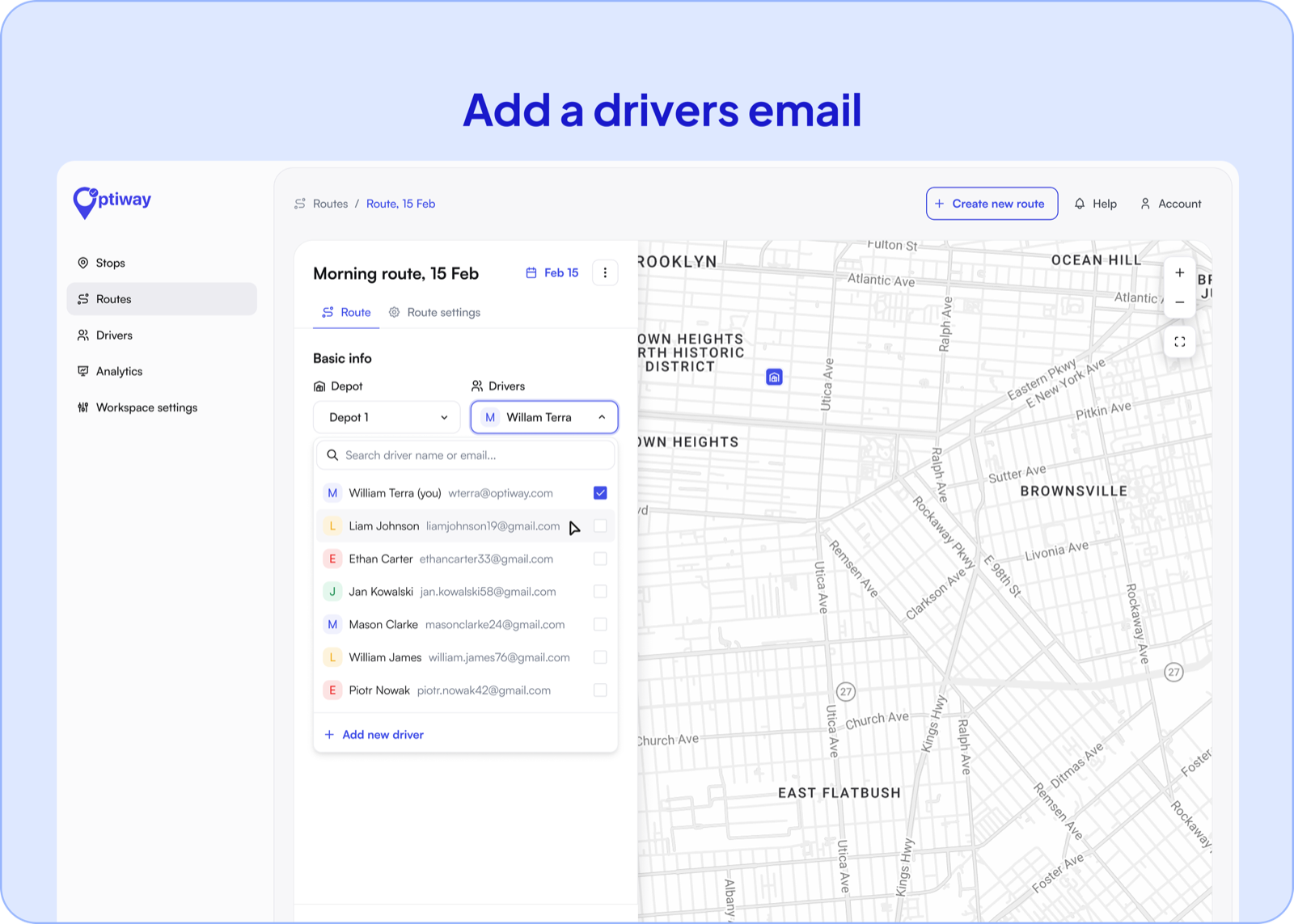
An optimized route only counts if the driver can follow it. You plan on the platform, then send the route to the driver’s mobile app — every sequenced stop arrives with a per-stop ETA estimate, and one tap opens turn-by-turn navigation in Apple Maps, Google Maps, or Waze. As a delivery route planner that runs from the dispatcher’s desk to the doorstep, planning and driving become one motion, not a copy-paste relay between two screens. Stop notes ride along too — a gate code or a loading-dock instruction is there with the stop in the app.
Does optimizing really shorten a route, or just reshuffle it?
It reshuffles with a purpose: less total distance and less dead time between stops. On a dense run that routinely gives back the better part of an hour.
How big a day can it handle?
Up to 200 stops per route in one pass, and larger days split into balanced sub-routes.
Can I re-optimize once a driver is already out?
Yes — add, drop, or reprioritize a stop and the order recalculates around the change, with updated per-stop ETA estimates.
Can I lock certain stops in place?
Yes. Pin a first or last stop — a depot start, a must-be-first priority drop — and Optiway optimizes everything else around the fixed points.
Do I need a dispatcher for any of this?
No. A single operator can run it solo; the multi-driver dispatch board is there when you scale into it.
Start with your next stop list, hit optimize, and drive. Optiway’s one-click route optimization comes with a free 7-day trial, so the miles and minutes it trims are visible before a card is ever entered.
Start your free trial and turn today’s stops into a faster route. And while you compare options, our pricing is easy to predict — you choose a plan by the stops you run each month rather than by headcount, with clearly stated limits if you go over.
Delivery Route Optimization App with Accurate ETAs
Plan smarter runs with accurate ETAs for every stop and less windshield time. Optiway optimizes delivery routes so you finish earlier.

Multi Stop Route Planner App for Delivery Drivers
Build routes with up to 200 stops, get smarter ETAs, and cut drive time - Optiway turns messy address lists into a clean run you can follow.
Delivery Driver Navigation App with Multi Stop Routes
Run multi stop routes with fewer taps, clear stop notes, and reliable ETAs. Optiway keeps drivers moving and deliveries on track.
Plan, assign and track every driver — live, from one dashboard.