Excel is fantastic at one thing: keeping your stops, notes, and addresses in one place without drama. The drama starts when you try to turn that list into an efficient route.
A spreadsheet can sort rows. It cannot “see” geography. It will happily give you a route that zig-zags across town because two streets share the same postal code. So the practical workflow looks like this:
- Use Excel as your clean source of truth (your stop list).
- Use a route planner to turn that list into a sensible stop order.
- Send the ordered list back to Excel if you need printing, sharing, or archiving.
Below is a simple Excel template that plays nicely with Optiway, plus the mistakes that break imports and waste time.
Why Excel alone turns route planning into guesswork
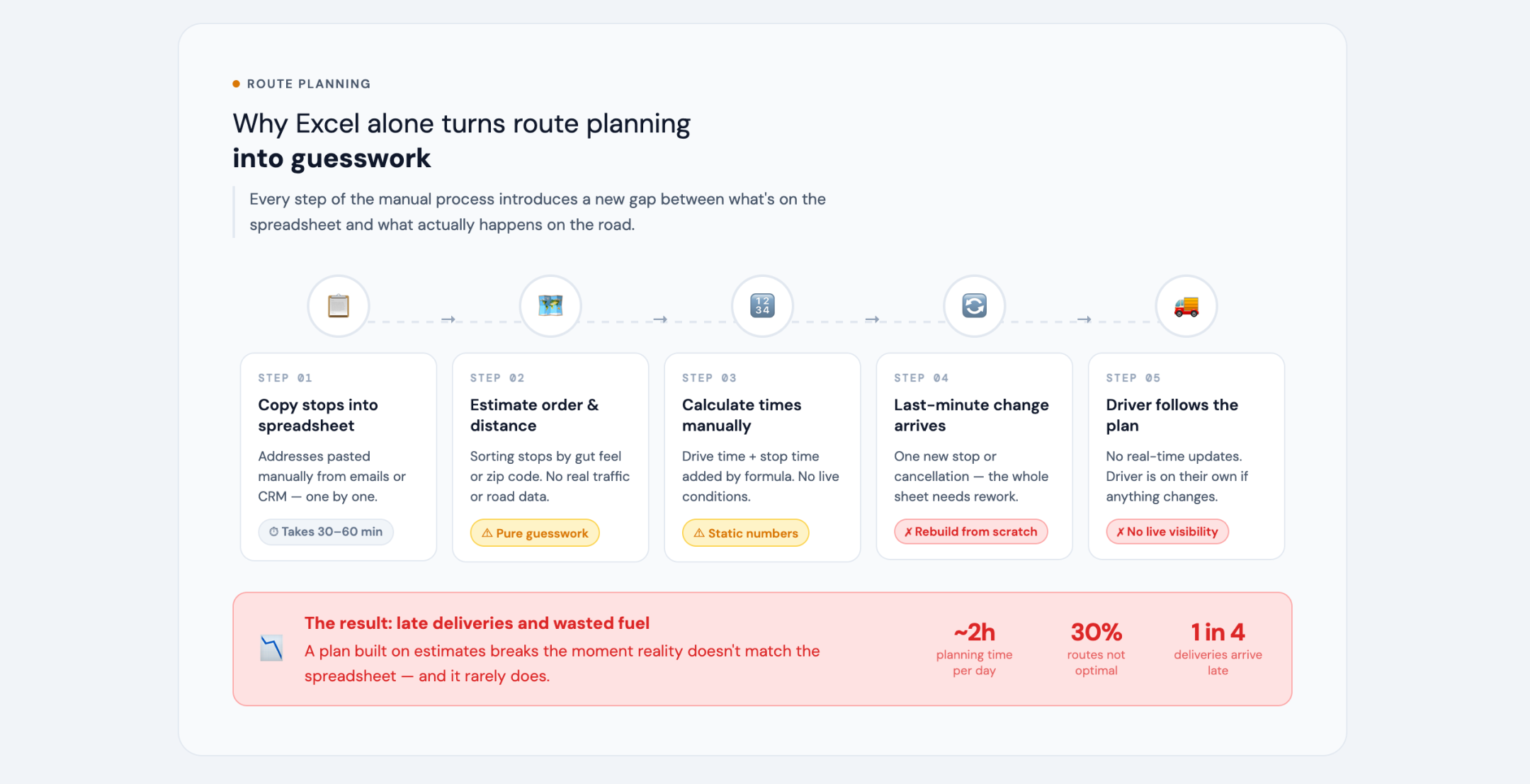
Most “Excel routing” ends up being one of these:
- Sorting by ZIP or neighborhood and hoping it roughly flows
- Copy-pasting addresses into a map app and manually reordering them
- Realizing you missed an apartment number, then repeating the whole thing
Excel is doing its job (organizing). It just was never built to calculate the best sequence of stops based on road networks and travel times. A route planner is built for that.
The Optiway-friendly Excel template (two-sheet setup)
Optiway’s spreadsheet import is intentionally strict: it expects addresses only, one address per line, with no numbering and no column names.
That’s why the cleanest Excel setup is a two-tab workbook:
Sheet 1 — “MASTER” (for humans)
Keep everything you care about here.
Suggested columns:
- Stop ID (your internal reference)
- Name (customer, site, job, whatever you call it)
- Full address (single cell is easiest for copy/paste)
- Notes (gate code, preferred entrance, “call on arrival”, etc.)
- Phone (optional)
- Earliest time (optional)
- Latest time (optional)
This sheet is for you. You can format it, filter it, color it, add comments — go wild.
Sheet 2 — “IMPORT” (for the app)
This sheet is boring on purpose.
Rules:
- Column A only
- No header row
- No numbering like “1) …”
- One complete address per row
Example (Column A, starting at row 1):
| 20 W 34th St, New York, NY 10118 |
| 405 Howard St, San Francisco, CA 94105 |
| 1 Apple Park Way, Cupertino, CA 95014 |
Tip: Build the Import sheet with a formula that pulls addresses from MASTER (so you never retype). Then copy and paste values when you’re ready.
Step-by-step — from Excel to an optimized stop order in Optiway
1) Prepare the file
- Make sure your IMPORT sheet contains only valid addresses, one per line.
- Keep it under 200 lines per document for import.
- Save as
.xlsx(or export a.txtif you prefer a plain list).
2) Import your stops
In the app:
- Open the menu (top-left).
- Tap Import route.
- Use Select file and choose your
.txt/.xlsx/.xls. - Optiway extracts the addresses and brings you to the route creation screen.
If any addresses can’t be found, Optiway shows a warning and skips them — which is a gift, not a failure. It’s telling you exactly where your spreadsheet needs cleanup.
3) Add a start (and optionally an end)
When creating a route, you can set a start address (or use your current location). You can also set a different end location, or keep it as a round trip back to the start.
4) Optimize, or keep your order
Once stops are loaded:
- Tap Optimize route to get the fastest route
- Or tap Skip optimization to preserve your current order
Note: Optiway’s Help Center mentions optimization is free up to 5 stops, and a subscription is needed to optimize routes with more than 5 stops.
5) Fine-tune when reality changes
Two useful knobs (optional, not required for basic routing):
- Priority stops: mark a stop as high priority, then re-optimize — priority placement happens after optimization is run.
- Time windows: set an earliest and latest time for a stop; Optiway uses that time window during route optimization.
And if you simply want to override the order yourself, you can reorder stops by editing the route and dragging them into place, then either re-optimize or keep the manual order.
Getting the ordered route back into Excel (so it’s not trapped in your phone)
If your Excel file is also your “day sheet” (printouts, notes, checklists), here’s the simplest approach:
- After you optimize, look at the stop sequence in the app
- In Excel, add a new column called
Route Orderin your MASTER sheet - Fill 1, 2, 3… based on the optimized sequence
- Sort by
Route Order
This keeps Excel as the record, while Optiway does the heavy lifting of sequencing.
Common mistakes that break Excel-to-route planning (and quick fixes)
1) Adding a header row on the IMPORT sheet
Symptom: the first “address” is literally the word “Address”,
and it gets skipped.
Fix: no column names on the import list.
2) Numbering each line
Symptom: “1) 20 W 34th St…” fails or imports inconsistently.
Fix: remove numbering — one address per line, plain text.
3) Splitting address across multiple columns
Symptom: partial addresses, missing city, weird matches.
Fix: put the full address in a single cell per row for import.
4) Missing unit numbers (Apt, Suite, Floor)
Symptom: the map lands you at the building, then the day stalls at the buzzer.
Fix: include unit details in the address line whenever possible.
5) “Near…” and “Opposite…” descriptions instead of real addresses
Symptom: skipped entries or wrong locations.
Fix: replace descriptions with a valid postal address (or a place name that consistently resolves).
6) Mixed countries or inconsistent formats
Symptom: perfectly fine addresses that resolve to the wrong continent.
Fix: standardize format — include city + region + postal code where applicable.
7) Typos that look harmless in Excel
Symptom: one stop vanishes during import with a warning.
Fix: take the warning seriously — correct the exact row positions Optiway flags.
8) Duplicates you didn’t notice
Symptom: you visit the same place twice and blame the route.
Fix: in MASTER, use Remove Duplicates (or a quick COUNTIF check) before you export the IMPORT list.
9) Trying to “optimize” by sorting ZIP codes
Symptom: a route that looks tidy in Excel and messy on the road.
Fix: sorting is fine for grouping, not sequencing. Use it to sanity-check clusters, then optimize the actual order.
A realistic workflow that stays fast (even when plans change)
If you want a process that doesn’t collapse the moment someone calls and changes an address:
- Keep your MASTER sheet clean
- Generate the IMPORT sheet (addresses only)
- Import into Optiway
- Optimize
- Only then add human judgment: priorities, time windows, manual reorder when needed
That’s the difference between “route planning” and “route guessing”.
FAQ
Can I plan a route in Excel without any other tool?
You can organize stops and make a rough plan, but Excel won’t compute an efficient stop sequence on its own. (Sorting is not optimization.)
What’s the fastest Excel format for importing stops?
A single column list with one full address per row, no headers, no numbering.
How many stops can I put into one imported list?
Optiway’s import guidance states a maximum of 200 addresses per document.
Can I keep my manual order instead of optimizing?
Yes — Optiway provides a “Skip optimization” option to preserve the stop order.